Steps
- Decide which label you needOrder labels go on cups and bags as an order is rung up. Price and barcode labels go on products and shelves. Clover prints the first kind; the second needs an app.
- For order labels, connect the printerPlug an Epson TM-L90 Plus into the Clover hub with 2¼ by 1¼ inch direct thermal labels. In the Printers app, select Add, Label Printer, and pick the printer.
- Pick what printsIn the Setup app, open Order Receipts and Sticky Labels, then the Sticky Labels tab. Choose all items or only labeled items, and print when Pay or Save is tapped.
- For price and barcode labels, give items a codeIn the dashboard, open each item and enter its UPC or SKU under Item tracking, so the label's barcode scans back to the right item.
- Install a label app and connect the printerInstall a label app from the App Market, then connect a label printer it supports, such as a Brother QL, DYMO or Zebra.
- Print and test a scanPick the items and label size, print one, and scan it at the register before printing the rest.
Receipt printers aren’t label printers
The printers built into Clover devices and Clover’s kitchen printers print on receipt paper. In the dashboard, Items, Printer labels decides which kitchen printer an item goes to; it doesn’t print barcodes. The name trips up a lot of people looking for label printing.
Two kinds of labels
Order labels print as an order is rung up: a sticky label for each drink or bag, with the item and its modifiers. Clover prints these itself on an Epson TM-L90 Plus, and you choose whether every item prints a label or only labeled items.
Price and barcode labels go on products and shelves before anything is sold. They carry the item’s name, price and a barcode that scans back to the item at the register. Clover doesn’t print these, so you need a label app and a label printer it supports.
Getting barcodes right
A barcode label only helps if it scans back to the right item. Before you print:
- Give every item a code. In the dashboard, enter the UPC or SKU under Item tracking. Items with no code can’t be scanned.
- Keep codes unique. Two items with the same barcode means the register picks one of them.
- Use the manufacturer’s UPC where the product has one, and your own in-store codes for everything else.
- Print big enough. A barcode squeezed onto a tiny label won’t scan.
Weighed items
Clover’s scale for weighed items is the CAS SW-20. It connects to the Station printer or the hub, and the item’s price type must be Price per unit, which needs a plan above Essentials. A label with a price-embedded barcode lets you weigh in the back and ring up at the front: the barcode carries the item and its price, so the register doesn’t need the scale.
What Clover can’t do for labels
- No price or barcode labels. Clover prints order labels only.
- One label printer model for order labels. Clover’s sticky labels print on the Epson TM-L90 Plus.
- No label designs. Clover sets the order label’s layout; you choose only what prints and when.
- No reprint queue. When prices change or a delivery comes in, nothing in Clover tells you which shelf labels are now out of date.
Before you buy a printer
- Match the label roll to the printer: Brother uses DK rolls, DYMO its own LabelWriter rolls.
- A barcode printed too small won’t scan. Test with your own scanner.
- Avery sheets on an office printer are fine for shelf labels if you print a batch a week.
- Thermal label printers need no ink, but direct thermal labels fade in sun and heat. Keep them for products that sell within months, not years.
A weekly label routine
Print new labels when prices change, when new items arrive and when a delivery restocks the shelf. Most stores do it once a week: check what changed, print, and swap the old labels on the shelf the same day so the price on the shelf matches the price at the register.
Questions
Which printers are compatible with Clover POS?
Clover devices print receipts on their own printers, and Clover prints sticky order labels on an Epson TM-L90 Plus. For price and barcode labels, a label app supports printers like the Brother QL, DYMO LabelWriter and Zebra desktop range.
How do I connect a label printer to Clover?
For order labels, plug the Epson TM-L90 Plus into the Clover hub, then in the Printers app select Add, Label Printer. For price and barcode labels, connect the printer to whatever your label app prints from, often a computer next to the printer.
Can Clover print barcode labels on its own?
No. Clover's sticky labels are order labels for cups and bags. Price and barcode labels for your items need an app from the Clover App Market.
What is Printer labels in the Clover dashboard?
It decides which kitchen printer an item's order goes to. It doesn't print barcodes or price labels.
Can I sell weighed items with labels?
Yes. Clover's scale is the CAS SW-20, and the item's price type must be Price per unit, which needs a plan above Essentials. A label with a price-embedded barcode lets you weigh in the back and ring up at the front.
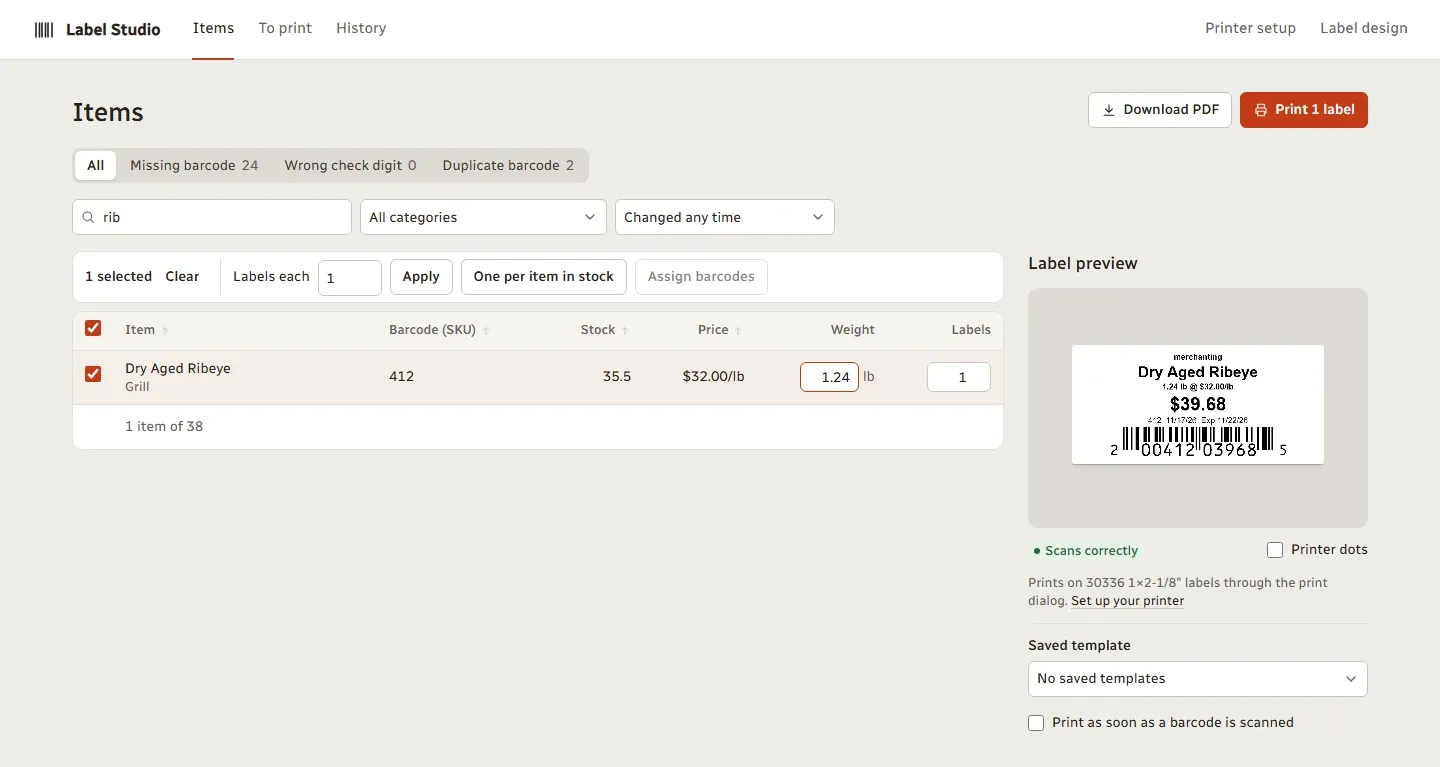
Label Studio, price and barcode labels for Clover
Label Studio prints price and barcode labels for your Clover items on common label printers or Avery sheets, from the browser, with nothing to install.